
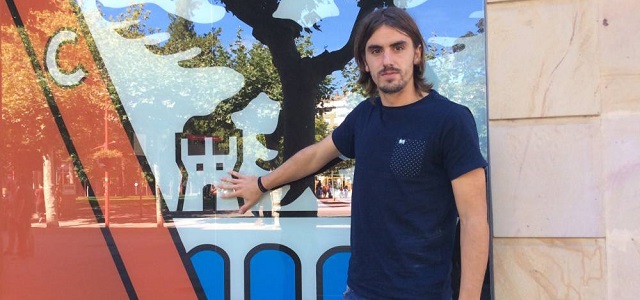
Desde que el CD Mirandés ascendió en 2012 a Segunda, siempre ha habido un mínimo de nueve jugadores vascos y navarros
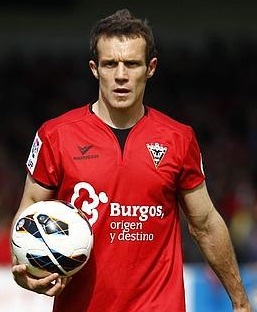
Miranda de Ebro (Burgos) limita al norte con la provincia de Álava, donde se encuentra Vitoria (capital del País Vasco). En un radio de tan solo ochenta kilómetros nos encontramos con las ciudades de Bilbao y Vitoria y, recorriendo cincuenta kilómetros más, nos encontraremos con San Sebastián y Pamplona. Esta escasa distancia que separa Euskadi y Navarra de Miranda de Ebro no sólo es geográfica, sino también futbolística.
Y es que desde que en la temporada 2012/13 el CD Mirandés debutó en Segunda, el vestuario local de Anduva siempre ha estado formado en gran parte por jugadores de las comunidades del norte de España (País Vasco y Navarra, principalmente, y, aunque en menor medida, La Rioja y Cantabria).
En la primera temporada del Mirandés en Segunda División, con Carlos Pouso al frente (entrenador que logró llevar al equipo hasta las semifinales de la Copa del Rey), diecisiete fueron los jugadores norteños que compusieron la plantilla del equipo mirandesista.
Entre estos diecisiete destacaron nombres como los de Iñaki Goitia (exportero del Málaga, Betis y Alavés la temporada pasada), César Caneda, Koikili Lertxundi e Iñigo Díaz de Cerio (estos tres últimos, exfutbolistas del Athletic Club), alguos de ellos más tarde conocidos en la élite.
La siguiente campaña, la 2013/14, tuvo dos etapas. Tras la destitución de Carlos Pouso, el encargado de dirigir el equipo en un primer momento fue Gonzalo Arconada (nacido en San Sebastián y ex, entre otros, de la Real Sociedad). Pero, tras dieciocho jornadas y una mala posición en la tabla, fue sustituido por un bilbaíno: Carlos Terrazas. Tanto Arconada como Terrazas dispusieron de una plantilla casi en su totalidad compuesta por jugadores originarios del norte de España.
Entonces continuaron muchos futbolistas del año anterior y también hubo incorporaciones de nuevos jugadores, entre los que destacaban el actual jugador de Osasuna Javi Flaño, también el mítico capitán del Numancia Txomin Nagore, Joseba Garmendia (eterna promesa de la cantera del Athletic Lezama y heredero del dorsal ‘8’ de Julen Guerrero), Íñigo Ruiz de Galarreta y, también, el actual extremo del CD Lugo Igor Martínez.
En el curso 2014/15, también en la Liga 1|2|3, el cuadro burgalés volvió a confiar en Carlos Terrazas como entrenador. Con un menor número de jugadores vascos y navarros (tan solo nueve de veintiséis futbolistas que componían la primera plantilla), el equipo volvió a salvar la categoría de manera más que holgada y se quedó a solo dos puntos de disputar el play-off de ascenso. De todos los vascos, el más destacado fue Urko Vera, quien anotó diecisiete goles, logrando así su mejor registro goleador como futbolista profesional.
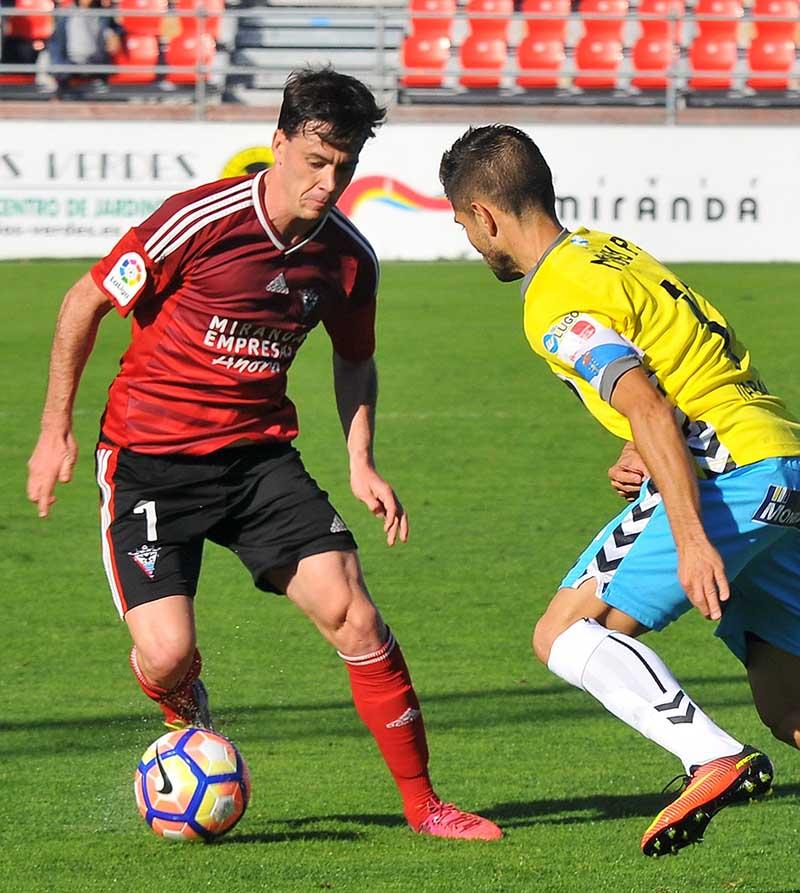
Tras esta histórica temporada, en la 2015/16, también con Carlos Terrazas en el banquillo, el equipo logró acabar en el puesto número quince de la Segunda División. En el vestuario de este Mirandés destacaron los jugadores criados en la cantera del Athletic Club: Raúl Fernández (ex del Real Valladolid), Iñigo Eguaras, Néstor Salinas o Ion Vélez.
Nueve este año
Finalmente, en la presente temporada, el encargado de crear un equipo por seguir dando guerra en la categoría de plata del fútbol español continuó siendo Carlos Terrazas (quien fue cesado al término de la jornada dieciséis, con el Mirandés el último). En esta ocasión, nueve son los jugadores vascos y navarros que integran la primera plantilla rojilla. Hasta hoy, el jugador más destacado del equipo está siendo Iker Guarrotxena.
El jugador vizcaíno ha jugado en todas las jornadas y con cinco goles es el máximo goleador de su equipo. Criado en la cantera de Lezama y, tras salir del filial rojiblanco en 2014, jugó cedido una temporada en el Tenerife para volver la pasada temporada al Bilbao Athletic con el que descendió a Segunda B. Junto a Iker Guarrotxena, también están destacando Gorka Kijera (ex de Eibar, Real Unión y Cartagena entre otros), Iñigo Eguaras y el portero titular Sergio Pérez (fichado del Deportivo Alavés y que cumple ya su cuarta temporada en Miranda).
No obstante, tras todos estos nombres, el jugador que más puede llamar la atención ver esta temporada en el equipo burgalés es Jon Aurtenetxe. En la temporada 2011/12 llegó al Athletic Club Marcelo Bielsa, quien nada más ver jugar al futbolista vizcaíno no dudó en otorgarle el lateral izquierdo del histórico equipo vasco.
Tras una muy buena primera temporada a las órdenes del técnico rosarino y un decepcionante segundo curso, tuvo que buscarse la vida lejos de San Mamés, concretamente en el Real Club Celta de Luis Enrique, con el que jugó en veinte ocasiones y siempre alternando la titularidad con el banquillo.
Después de una mediocre temporada en Vigo, Aurtenetxe volvió al Athletic para tan solo disputar cuatro partidos a las órdenes de Ernesto Valverde. Esta escasa participación sumada a una mínima confianza en él, le obligó a salir una vez más lejos de Bilbao. Esta vez su destino fue el CD Tenerife, donde jugó veintitrés partidos a un nivel siempre muy por debajo del que encandiló en su día a Marcelo Bielsa. Este verano volvió a Lezama y tras concederle el Athletic la carta de libertad recaló finalmente en el equipo de Anduva.
Como se puede ver, muchos son los jugadores que a lo largo de estos últimos años han hecho las delicias de la afición mirandesa. Algo que, sumado a los escasos kilómetros que separan Miranda de Euskadi hace que en Anduva se hable cada vez más euskera.

1 comentario en «En Anduva se habla euskera»